










Free Up Android Storage: 9 Best Ways to Fix “Storage Full” for Good
Fastest ways to free up Android storage: clear the app cache, delete downloads folder junk, back up photos to Google Photos and remove them from the device, and uninstall apps you have not opened in 3 months. “Storage space running out” affects almost every Android user eventually — modern apps, 4K video and WhatsApp media fill even 128 GB phones. These 9 methods reliably recover 5–30 GB without losing anything important, and the last three keep it from filling up again.
First: Find What Is Actually Eating Your Storage
Guessing wastes effort. Android tells you exactly where the space went:
- Open Settings → Storage (on some phones: Settings → Battery & device care → Storage).
- Read the breakdown: Apps, Photos/videos, Audio, System, Cached data, and “Other.”
- Tap each category to drill down — most phones rank items by size.
Typical patterns: Photos/videos and WhatsApp data dominate on personal phones; games and cached data dominate on heavy app users; “Other” bloat of 10+ GB usually means leftover downloads and app data from uninstalled apps.
Before diving into deletion, take two minutes to inventory the phone: open the Storage breakdown and screenshot it, note the date, and set a rough target — for example, from 12 GB free to 40 GB free. A before/after number turns free up Android storage from a vague chore into a finished project, and the screenshot tells you later which methods actually moved the needle on your specific device. Phones differ: WhatsApp dominates for some, offline maps for others, a decade of photos for someone else. The cleanup order that fits your neighbour may be wrong for you, which is why the measurement comes first and the generic advice comes second.
9 Ways to Reclaim Space (Ranked by GB Recovered)
- Back up photos, then delete them from the phone (5–50 GB). Google Photos gives every account 15 GB free. Back up, confirm the backup badge on key albums, then use “Free up space” inside Google Photos — it removes on-device copies of already-uploaded media. This is the single biggest lever for most people.
- Clear app caches (1–10 GB). Settings → Apps → [app] → Storage → Clear cache. Cache is temporary data apps re-download as needed; clearing it never deletes personal data. Browsers, Instagram, YouTube and maps apps are the usual hoarders.
- Empty the Downloads folder (1–20 GB). Files/My Files → Downloads. Years of PDFs, APKs, video files and forwarded memes live here. Delete what you do not recognise as important — most of it is one-time-use.
- Tame WhatsApp media (2–30 GB). WhatsApp → Settings → Storage and data → Manage storage. It ranks chats by size; delete the “Forwarded many times” section first (junk you never asked for), then large videos from group chats. Then turn OFF auto-download for video in Settings → Storage and data.
- Uninstall apps unused for 3+ months (0.5–10 GB). Sort by “last used” or “size” in Settings → Apps. Games and shopping apps you abandoned still hold data. If you are unsure, use “Disable” for preinstalled apps instead of uninstalling.
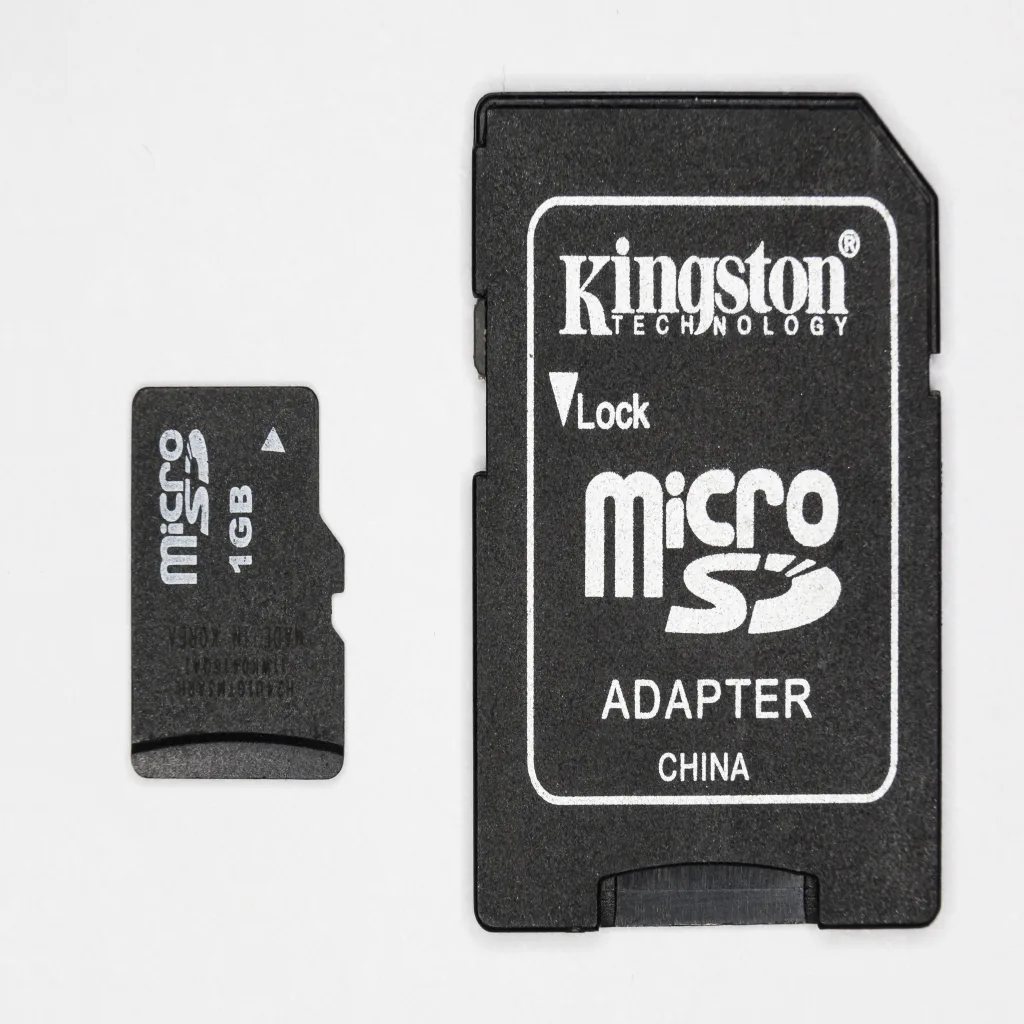
- Move media to an SD card (device-dependent). If your phone has a slot, Settings → Storage lets you migrate photos and some apps. A 64 GB card costs under ₹600. Phones without slots: this method is unavailable — rely on cloud and cleanup instead.
- Offload files to cloud or PC (1–30 GB). Large videos and documents can live on Google Drive (15 GB free shared with Gmail/Photos), a laptop via cable, or a pendrive with an OTG adapter. Keep originals on the device with the most reliable backup.
- Delete duplicate and blurry photos (1–10 GB). Google Photos → Search → utilities finds screenshots, duplicates and blurry shots. Screenshots alone often exceed 2–3 GB on a few-year-old phone.
- Use Files by Google “Clean” tab (auto finds junk). The free Files by Google app surfaces duplicate files, memes, large files and unused apps in one review screen — the closest thing to a safe “one-tap cleanup” without installing cleaner apps that themselves show ads.
What NOT to Delete (Common Accidental Data Loss)
- Do not clear “Data” when you mean “Cache.” Clear storage/data wipes logins, app settings and offline content; clear cache removes only temporary files. The two buttons sit next to each other.
- Do not delete the Android/data or obb folders manually with file managers — games may need re-downloading gigabytes of assets, and on newer Android you cannot touch these folders anyway.
- Verify cloud backup before mass-deleting photos. Check that the upload badge appears on recent photos and that backup is on Wi-Fi-complete, not “never.” Deleting before upload finishes is the classic photo-loss mistake.
- Do not trust “cleaner” apps promising 10 GB instantly. Many are ad-farms that delete harmless thumbnails to show a big number, then re-download it. Stick to Files by Google or built-in tools.
- Keep 10–15% of storage free permanently. Android needs working room for updates and app installs; filling to 99% causes lag and update failures even with space “technically” free.
WhatsApp Deep Clean to Free Up Android Storage: The Indian Phone’s Biggest Hog
For most Indian users, WhatsApp is storage enemy #1 — years of group videos accumulate invisibly. The thorough routine:
- Settings → Storage and data → Manage storage — WhatsApp shows total usage and ranks contacts/chats by size.
- Review “Larger than 5 MB” — sort by size, delete videos you recognise as forwards.
- Review “Forwarded many times” — this section is almost always safe to clear entirely.
- Per-chat cleanup: open the biggest chat → tap contact name → Media, links and docs → delete media selectively.
- Stop the refill: Settings → Storage and data → Media auto-download → set photos to Wi-Fi only, videos and documents to “No media.”
- Check the WhatsApp/Databases folder in your file manager — old chat backups accumulate; keep the latest 2, delete older ones.
A single aggressive WhatsApp clean routinely recovers 5–15 GB on phones used for 2+ years.

Cloud Storage Options Compared (Free Tiers)
| Service | Free space | Best for | Catch |
|---|---|---|---|
| Google Photos | 15 GB (shared with Gmail/Drive) | Photo/video backup | Storage counts against the shared 15 GB; full-quality uploads consume it |
| Google Drive | 15 GB (same pool) | Documents, large files | Same shared quota — plan the 15 GB across services |
| Telegram “Saved Messages” | Effectively unlimited | File dumps, large videos | Cloud chats are not end-to-end encrypted by default |
| PC/laptop copy | Your disk size | One-time archives | No redundancy — a dead drive loses everything |
| Paid Google One | 100 GB ≈ ₹130/month | Heavy photo users | Subscription; often shared with family plan members |
The practical free strategy: 15 GB Google pool for photos and documents, Telegram Saved Messages for oversized video archives, and an annual copy to a laptop for anything irreplaceable. Two independent copies of anything you would cry about losing.
Stop Storage Filling Up Again: 5 Prevention Settings
- WhatsApp auto-download OFF for videos (the single highest-impact setting for Indian phones).
- Camera: shoot 1080p video, not 4K unless you specifically need it — 4K consumes roughly 4× the space per minute.
- Google Photos “Free up space” monthly — set a monthly phone reminder; the routine takes 3 minutes.
- Play Store: auto-update apps over Wi-Fi only and uninstall unused apps automatically (Play Store → Settings → “Remove unused apps”).
- Browser: clear cache monthly or use “lite” sites for heavy services; download files straight to cloud folders where the app supports it.
When “Storage Full” Persists After Cleanup
If you have deleted gigabytes and free space barely moves, three deeper causes are likely:
- System storage bloat. Android system and updates can occupy 15–30 GB and are not user-deletable; only a factory reset or system update reclaims them. Check Settings → Storage → System before blaming yourself.
- App data masquerading as “Other.” Some apps (offline maps, podcasts, Spotify downloads) store gigabytes inside app data. Check the biggest apps’ storage pages individually — offline maps alone can hold 10 GB.
- Failed updates and logs. A stuck system update can leave multi-GB partial files. A reboot sometimes clears them; otherwise an update completion does.
Factory reset is the honest last resort: it reclaims everything except system, but requires a full backup first (Settings → System → Backup) and a half-day of re-setup. Do it when a 2-year-old phone is chronically full despite every method above — it is effectively a free upgrade.
SD Cards: When They Help and When They Don’t
The microSD question divides Android users, so here is the honest breakdown:
- What CAN move to SD: photos, videos, music, offline maps (Google Maps supports SD storage), documents, and on some phones selected apps via “Change storage” in app settings.
- What CANNOT move: apps’ core data on modern Android (Android 11+ blocks most app migration), system files, WhatsApp databases (backups only), and anything requiring fast sustained speed.
- Speed classes matter: for video recording, use Class 10 / U3 / V30 cards. A slow card causes dropped frames in camera apps and stuttering in moved apps. Buy A1/A2-rated cards if apps will live on them.
- Reliability reality: SD cards fail more often than internal storage. Treat SD contents as “copies,” not “the only copy” — the same two-copies rule as cloud.
- Adoptable storage (format as internal) merges the card into system storage — technically possible but slow cards drag the whole phone down, and most manufacturers disabled it. Avoid except on desperate, low-spec devices.
For phones WITH a slot, the winning pattern: camera saves directly to SD (set in Camera app settings), WhatsApp media folder pointed at SD, and cloud backup running for the irreplaceable subset. Internal storage then stays lean for apps and system.
Photos: The Full Backup-and-Delete Workflow to Free Up Android Storage
Photos/videos are the largest category on most phones, so doing this workflow properly is worth 20 minutes:
- Confirm backup is actually running. Google Photos → profile picture → “Backup is on” with a recent completion time. Set backup to run on Wi-Fi + charging for reliability.
- Wait for the catch-up. A multi-year backlog of 50+ GB takes days on home broadband. Check the pending count before deleting anything.
- Spot-verify. Open Google Photos on another device (or photos.google.com), search a few recent events and old years, and confirm they load at full resolution. Trust-then-verify.
- Use “Free up space” in Google Photos. The built-in tool deletes only photos already confirmed uploaded, keeping them accessible in the cloud. It reports how many GB it reclaimed — often 10–40 GB.
- Handle screenshots and memes separately. Search “screenshots” in Google Photos, delete in bulk — screenshots usually don’t merit cloud space at all.
- Set the camera for the future: 1080p default video, HDR on, full-resolution RAW off (unless you genuinely shoot RAW).
After the workflow, your phone keeps camera-ready free space while the full library remains instantly viewable from the cloud — the same pattern big-phone users pay ₹10,000 extra for, implemented in software.
Apps: Finding the Silent Space Hogs
| Common hog | Why it’s big | Fix |
|---|---|---|
| Offline maps (Google Maps) | Cities can be 1–3 GB each | Delete old city downloads; re-download when travelling |
| Spotify/Podcasts | Downloaded audio accumulates | Limit downloads; enable “delete played episodes” |
| Instagram/Facebook | Cache grows without limit | Clear cache monthly; use “lite” versions |
| Games | 1–10 GB each with assets | Uninstall finished games; cloud saves preserve progress |
| YouTube (offline) | Downloads persist per app | Review downloads list inside the app |
| Email (attachments) | Years of cached mail | Reduce sync window to 30 days |
Open Settings → Apps → sort by size, and work down the top ten. Any app above 500 MB deserves a look at its storage page to see how much is cache (safe to clear) versus data (review inside the app first).
Factory Reset: The Clean Slate Done Right
When a long-owned phone stays chronically full, a reset reclaims every non-system byte and often fixes mystery slowdowns. Doing it without tears:
- Full backup first: Google One backup (Settings → Google → Backup) covers apps, SMS, call history and settings; Google Photos covers media; WhatsApp → Settings → Chats → Chat backup covers conversations to Drive.
- Export the odd stuff: two-factor tokens (re-enrol them after reset), authenticator app transfers, offline files nobody remembers, music libraries.
- Note your passwords — with Google password sync on, most come back automatically; the stragglers cost hours.
- Reset: Settings → System → Reset options → Erase all data.
- Restore: sign in during setup and choose the fresh restore — Android reinstalls apps and recovers the backed-up data over Wi-Fi.
Budget a half-day for re-setup and re-login across apps. The reward: a phone that behaves like new storage-wise, typically 10–25 GB cleaner than any partial cleanup achieved.
One more angle worth checking before the deep pass: stale backups and sync leftovers. Samsung Cloud remnants, old Google Drive app backups from previous phones (Drive → Backups), and duplicate music folders transferred from old devices routinely hide 3–8 GB. Google keeps app backups indefinitely; deleting backups of phones you no longer own is free space with zero consequence. Similarly, check your music and ringtone folders — copies of the same MP3s synced across multiple phone transfers accumulate silently. The pattern to remember: storage problems compound through duplication, and the oldest folders deserve suspicion first, because nobody has audited them since the phone was new.
Frequently Asked Questions
How do I free up Android storage without deleting anything?
Clear app caches (temporary files, not your data), move photos to cloud storage or an SD card, and offload large files to a PC. Cache-clearing alone often recovers 1–10 GB and deletes nothing personal. Everything else involves moving data rather than deleting it.
Why is my storage full when I have no photos or videos?
Three usual culprits: app data (games and offline content like maps/podcasts store gigabytes invisibly), cached data across many apps, and WhatsApp databases. Check Settings → Storage category breakdown — “Apps” and “Other” reveal where it actually went.
Does clearing cache delete passwords or photos?
No. Cache is temporary downloaded content — images a webpage showed, thumbnails, video buffers. Passwords, photos, messages and settings live in app data or system storage, which clearing cache never touches. It is the safest cleanup button on the phone.
Is it safe to delete the Downloads folder?
Mostly yes — it accumulates one-time files (APKs, forwarded PDFs, old bills you have elsewhere). Review before deleting: move anything resembling documents you might need to Drive first, then clear the rest. Nothing system-level lives there.
How much free storage should an Android phone keep?
Aim for 10–15% free permanently — roughly 12–19 GB on a 128 GB phone. Android needs working space for OS updates, app installs and virtual memory; chronically-full phones lag and fail updates even when “space was just freed.”
Do cleaner apps like Clean Master actually work?
Not recommended. Independent analyses repeatedly find aggressive ads, notification spam and questionable data practices in the big cleaner apps, while their “recovered space” is mostly reclaimable with built-in tools anyway. Files by Google does the same job free, ad-free and privacy-safely.
Can I expand storage with a SD card on any phone?
No — most phones since ~2020 dropped the microSD slot, especially in the mid and premium segments. Check your specific model’s specifications. If there is no slot, cloud backup plus cleanup are your only options; some apps allow moving data to USB-OTG drives temporarily.
The Bottom Line
Free up Android storage in three passes: a quick pass (cache, Downloads, Files by Google) for instant GB, a deep pass (WhatsApp clean, photo backup-and-delete, unused apps) for the real space, and a prevention pass (auto-download off, monthly free-up reminder) so it stays fixed. Most 64–128 GB phones can recover 10–30 GB in one focused hour without losing a single photo or chat. And if the phone remains full after all of it, the space went to system or offline app data — check those specifically before considering a reset.
Related: Is This Website Safe? 8 Checks and What Is a VPN?.
Sources
- Google Support — Free up space on Android
- Google Photos — Backup and free up space
- WhatsApp Help — Manage storage
- Files by Google — official app
Explore more on Dangit: health, technology, science, nature, featured, lifestyle, society, the local business directory and more reading.





[…] Read next on Dangit: how to free up Android storage. […]
[…] Free Up Android Storage: 9 Best Ways to Fix Storage Full for Good […]