









A slow laptop is usually not a sign that you need a new one. In most cases the cause is one of five things: a full drive, too little memory, a mechanical hard drive, too many startup programs, or overheating. Each has a fix, and several cost nothing. Work through this list in order, from the cheapest and quickest checks to the ones that need hardware.
First, find out what is actually slow
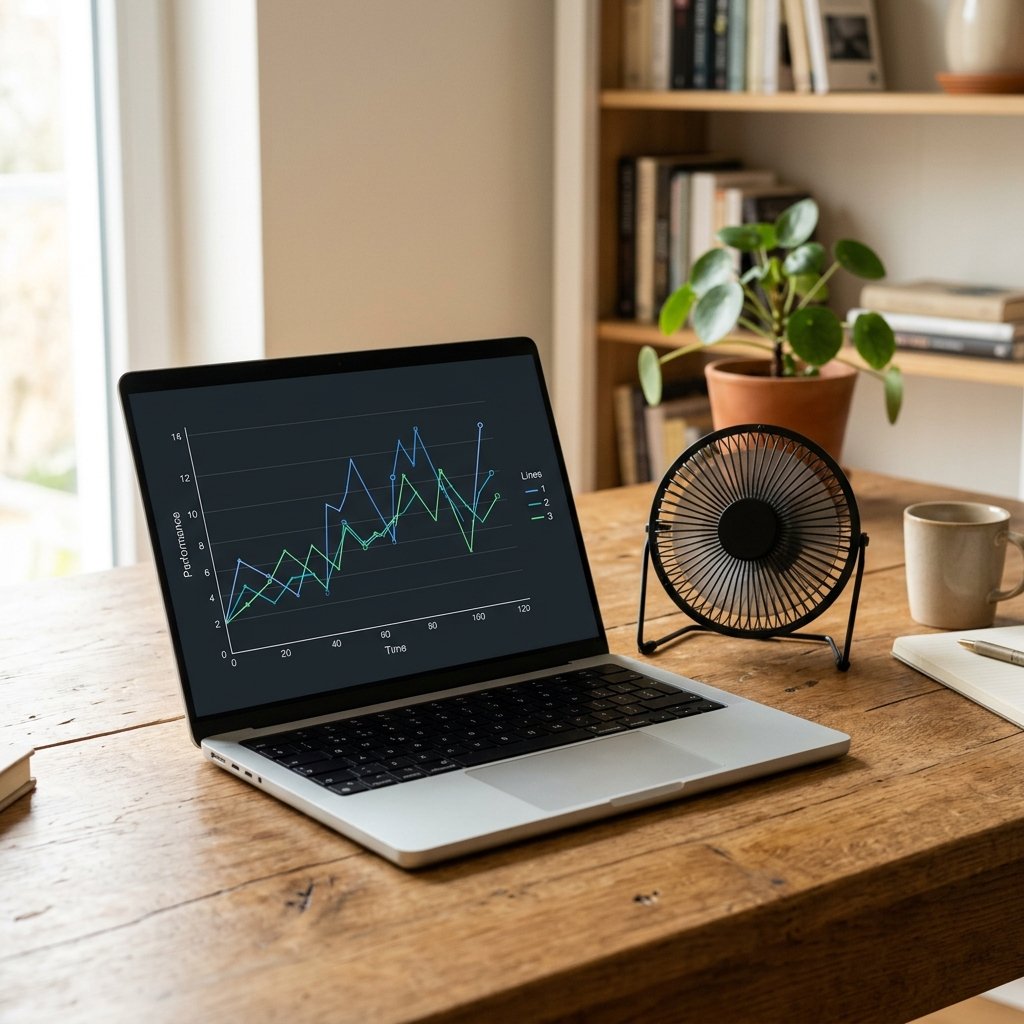
Open Task Manager with Ctrl + Shift + Esc and click the Performance tab. Watch the four graphs while the laptop is slow:
- CPU at 100%: a program or malware is using all the processing power.
- Memory at 90%+: you need more RAM or fewer open apps.
- Disk at 100%: the drive is the bottleneck, common with old hard drives.
- GPU at 100%: a game, browser hardware acceleration or video app is loading the graphics chip.
In the Processes tab, sort by CPU, Memory and Disk to see the exact program responsible. A single unknown process using 80% of the CPU is a strong hint.
1. Restart properly
Closing the lid puts the laptop to sleep; it does not clear memory. Shut down or restart at least once a week. On Windows, hold Shift while clicking Shut down for a full shutdown that skips Fast Startup.
2. Cut startup programs
Every program that launches at login competes for resources. In Task Manager, open the Startup tab and disable anything you do not need immediately: update checkers, chat apps, cloud drives, game launchers. Disabling does not uninstall the program; it just stops it starting automatically.
3. Free up disk space
Windows needs roughly 15-20% of the system drive free to work efficiently. When it drops below that, updates and temporary files struggle, and the laptop feels sluggish.
- Open Settings > System > Storage and run Storage Sense.
- Empty Downloads, Recycle Bin and temporary folders.
- Uninstall programs you no longer use.
- Move large media files to an external drive or cloud storage.
- Use Disk Cleanup > Clean up system files to remove old Windows update files.
4. Replace the hard drive with an SSD
This is the single biggest upgrade for an older laptop. A mechanical hard drive (HDD) is often the reason a machine with a decent processor feels slow: it takes milliseconds to find data, while an SSD is effectively instant. Booting from an SSD can cut startup time from minutes to seconds and makes apps open immediately. Our SSD vs HDD guide explains which drive to buy.
Check what you have: Task Manager > Performance > Disk, or Settings > System > Storage. If it says HDD, an SSD upgrade is usually worth it. A 500GB SATA SSD costs far less than a new laptop. Many laptops have an M.2 slot for an even faster NVMe drive. If you are unsure about compatibility, check the model’s service manual or ask a repair shop to clone the existing drive.
5. Add more RAM
If Task Manager shows memory consistently above 80-90% with normal use, more RAM will help. Eight gigabytes is the practical minimum for Windows 11 with a browser open; 16GB is comfortable for multitasking, photo editing or many browser tabs. Check whether your laptop has a free slot or soldered memory before buying.
6. Update Windows, drivers and firmware
Updates fix performance bugs and security holes. Install pending Windows updates, then check the manufacturer’s support page for chipset, graphics and BIOS updates. Graphics driver updates in particular can fix stuttering and high GPU usage.
7. Scan for malware and unwanted software
Malware, adware and browser hijackers consume CPU and network bandwidth. Run a full scan with Windows Security or a reputable antivirus. Also check for browser extensions you do not recognise and remove them. Be careful with “PC optimiser” programs; many cause more problems than they fix.
8. Reduce background and browser load
Browsers are memory-hungry. Each tab and extension can use hundreds of megabytes. Close tabs you are not using, remove unnecessary extensions, and turn on the browser’s memory saver feature if it has one. Also check for apps syncing in the background, such as cloud drives or photo backup tools. If pages themselves load slowly, work through our slow Wi-Fi fixes and browser cache guide.
9. Fix overheating and dust
When a laptop gets hot, it slows the processor to protect itself. That is called thermal throttling, and it can make a fast machine feel old. Symptoms include loud fans, a hot chassis and performance that drops after a few minutes of use.
- Use the laptop on a hard surface, not a bed or cushion.
- Clean the vents with compressed air, short bursts, with the laptop off.
- Do not block the fan intake.
- If you are comfortable opening the case, remove dust from the heatsink and fan.
- On older laptops, replacing the thermal paste can restore performance, but it is a job for someone experienced.
10. Check the power plan
On battery, Windows and macOS deliberately reduce performance to save power. Plug in the charger and set the power mode to Best Performance (Windows) or High Power (macOS) when you need speed. A failing battery can also force low-power mode even when plugged in.
11. Disable visual effects (Windows)
Animations and transparency look nice but cost resources on low-end hardware. Search for “Adjust the appearance and performance of Windows”, choose Adjust for best performance, then re-enable only the effects you want.
12. Reset or reinstall the operating system
If the laptop is still slow after all of the above, the software may be cluttered beyond easy repair. Windows Reset (Settings > System > Recovery) reinstalls the system while keeping your files, or removes everything for a clean start. Back up first. A clean install is more work but gives the best result on an old machine.
Symptom-to-cause cheat sheet
| Symptom | Most likely cause | Best fix |
|---|---|---|
| Slow boot, apps take minutes to open | Mechanical hard drive | Upgrade to an SSD |
| Freezes with many tabs open | Not enough RAM | Add memory or reduce tabs |
| Fans loud, slow after a few minutes | Overheating / dust | Clean vents, improve airflow |
| Disk usage stuck at 100% | HDD or Windows indexing | SSD, disable unneeded services |
| Slow only on battery | Power plan | Plug in, set high performance |
| Slow after startup | Startup programs | Disable non-essential startup apps |
| Sudden slowdown, pop-ups | Malware or adware | Full scan, remove extensions |
Upgrade or replace?
As a rough guide, an SSD and RAM upgrade is worth it if the laptop is under five years old and the processor is still adequate. If the machine is older, has a soldered low-power processor, a failing hinge or a dead battery, put the money toward a new laptop instead. A 500GB SSD plus 8GB of RAM usually costs a fraction of a replacement, so the upgrade is often the better value.
Frequently asked questions
Will more RAM make my laptop faster?
It will if memory is the bottleneck, meaning Task Manager regularly shows 80-90% usage. If the disk is at 100% or the CPU is maxed out, more RAM will not help much.
Why is my laptop slow after a Windows update?
Updates often run background indexing, driver installs and optimisation for a few hours. Give it a day and restart. If it stays slow, check for a failed update, roll back the graphics driver, or free up disk space.
How do I check if my laptop has an SSD?
Open Task Manager > Performance > Disk. The drive type is shown at the top right. You can also check Settings > System > Storage > Advanced storage settings.
Does disk cleanup actually help?
Yes, if the drive is nearly full. Removing temporary files, old updates and the Recycle Bin can free several gigabytes and restore normal speed. It will not fix a failing hard drive.
Is it worth upgrading a 7-year-old laptop?
Usually not, unless it already has an SSD and just needs more RAM. At that age, battery, screen and hinge wear add up, and a new entry-level laptop may be better value.