










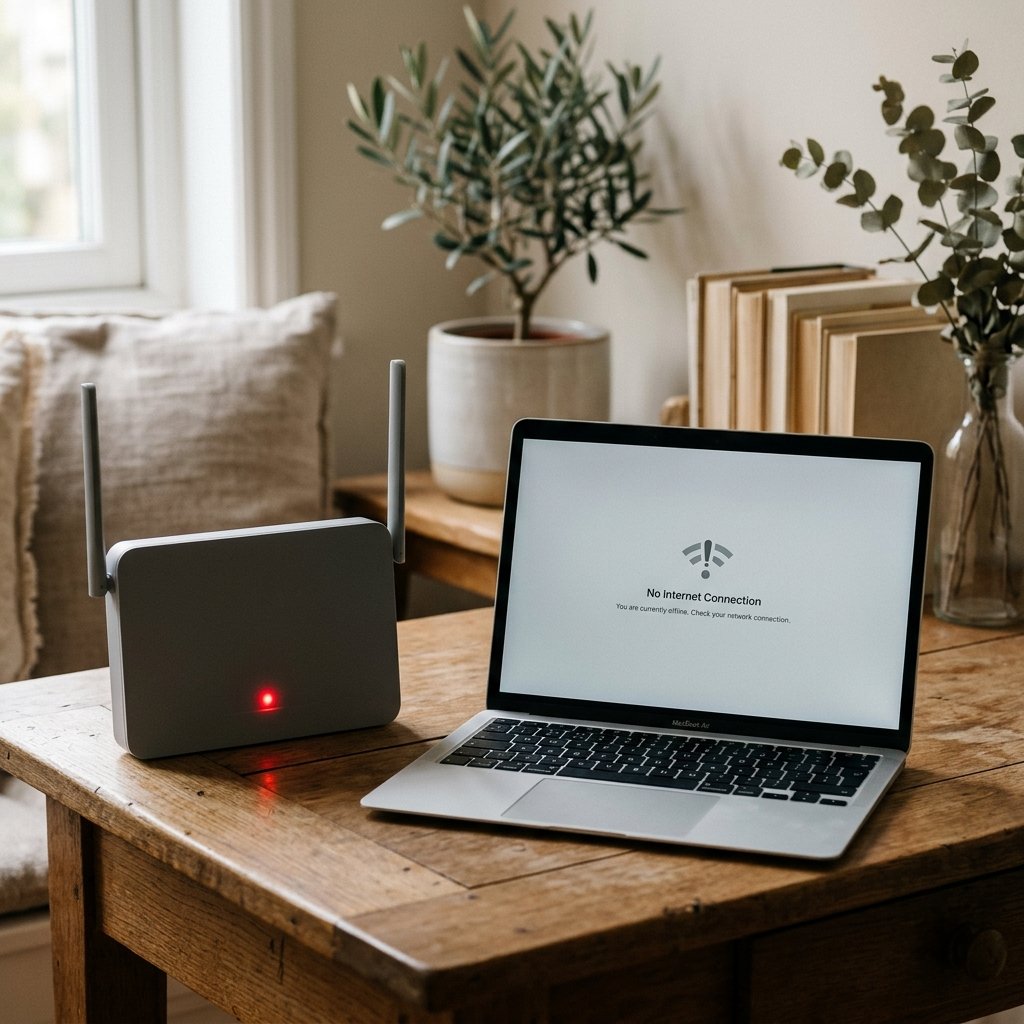
Your phone or laptop says “Connected, no internet” while the Wi-Fi icon looks perfectly normal. That message is precise: the device reached the router, but the router could not reach the internet. The fault is usually in one of four places: the internet provider, the modem, the router, or the device’s network settings. This guide walks through the fixes in the order that solves the problem fastest.
First, narrow down where the problem is
| What you see | Most likely cause |
|---|---|
| No device has internet | ISP outage, modem or router fault |
| Only one device has no internet | That device’s Wi-Fi settings, VPN or DNS |
| Some apps work, others do not | DNS, proxy or app-specific issue |
| Wi-Fi works but only one website fails | The website is down, not your connection |
| Internet drops at the same time daily | ISP congestion or router scheduling |
Test with a second device and, if possible, a mobile hotspot. If the hotspot works, your device is fine and the home network is the problem. For slower-but-working connections, see our guides to slow Wi-Fi fixes and checking your internet speed.
1. Check for an ISP outage
Look at the modem and router lights. A solid or blinking “Internet” or “WAN” light usually means the line is up. A red or off internet light points to the provider. Check your ISP’s status page or app, and call support if there is a known outage in your area. In many cases there is nothing to fix locally.
2. Restart in the right order
A proper power cycle clears stuck connections and renews the IP address from the provider.
- Unplug the modem and the router from power.
- Wait 30 seconds.
- Plug in the modem first and wait for its lights to stabilise (about 2 minutes).
- Plug in the router and wait for the Wi-Fi light.
- Reconnect the device.
Restarting only the router often fails because the modem still holds the old session.
3. Forget the network and reconnect
A corrupted saved profile can connect to the router but fail to obtain a working address.
- Android: Settings > Network & internet > Internet > tap the network > Forget. Reconnect and re-enter the password.
- iPhone: Settings > Wi-Fi > tap the “i” beside the network > Forget This Network. Reconnect.
- Windows: Settings > Network & internet > Wi-Fi > Manage known networks > Forget.
4. Check whether you have a valid IP address
An address starting with 169.254.x.x means the device could not get an address from the router’s DHCP server. That is a local network failure, not an ISP problem.
- Windows: open Command Prompt and run
ipconfig. Look at the IPv4 address. - Android: Settings > Network & internet > Internet > tap the network > IP address.
- iPhone: Settings > Wi-Fi > tap the “i” > IP Address.
If you see a 169.254 address, restart the router, then renew the lease. On Windows: ipconfig /release, then ipconfig /renew.
5. Change the DNS servers
DNS translates website names into IP addresses. A failing DNS server produces the classic “connected but no internet” behaviour: the Wi-Fi is fine, but pages will not load. Try Cloudflare (1.1.1.1) or Google (8.8.8.8).
- Windows: Settings > Network & internet > Wi-Fi > Hardware properties > DNS server assignment > Edit > Manual > IPv4 on, preferred 1.1.1.1, alternate 8.8.8.8.
- Android: Settings > Network & internet > Private DNS > Private DNS provider hostname >
one.one.one.one. - iPhone: Settings > Wi-Fi > tap the “i” > Configure DNS > Manual > add 1.1.1.1 and 8.8.8.8.
You can also set the DNS on the router so every device benefits.
6. Flush the DNS cache and reset the network stack
On Windows, open Command Prompt as administrator and run these one at a time:
ipconfig /flushdns
netsh winsock reset
netsh int ip reset
Then restart the computer. On macOS, the equivalent is sudo dscacheutil -flushcache and sudo killall -HUP mDNSResponder.
7. Turn off VPNs, proxies and private DNS
A VPN that loses its tunnel can leave the device connected to Wi-Fi but unable to route traffic. Disconnect the VPN completely, then test. Also check for a manual proxy:
- Windows: Settings > Network & internet > Proxy > turn off manual proxy.
- Android: Settings > Network & internet > VPN > disconnect; check Private DNS is set to Automatic if you are not using a custom one.
- iPhone: Settings > General > VPN & Device Management > disconnect.
8. Check the router’s device limit and MAC filtering
Some routers cap the number of connected devices or block unknown devices by MAC address. If a new phone or laptop cannot get online while older devices can, log in to the router admin page (usually 192.168.1.1 or 192.168.0.1) and check the connected devices list, parental controls and access restrictions.
9. Check the WAN and PPPoE settings
If the router was reset, it may have lost the ISP username and password used for PPPoE. Log in to the router and confirm the WAN connection type and credentials. Your ISP provides these. A wrong password shows as a connected LAN with no internet.
10. Update or reset the device’s network settings
Outdated Wi-Fi drivers cause intermittent drops and failed connections.
- Windows: Device Manager > Network adapters > right-click the Wi-Fi adapter > Update driver. If that fails, download the driver from the laptop manufacturer’s site.
- Android: Settings > System > Reset options > Reset Wi-Fi, mobile & Bluetooth. This erases saved networks, not your data.
- iPhone: Settings > General > Transfer or Reset iPhone > Reset > Reset Network Settings.
“Connected, no internet” on Android: the quick sequence
- Toggle airplane mode on and off.
- Forget and reconnect the network.
- Restart the phone.
- Set Private DNS to Automatic or
one.one.one.one. - Reset Wi-Fi, mobile and Bluetooth settings.
- Test on another Wi-Fi network to confirm the phone is fine.
When to call your ISP
- The modem’s internet light is red or off after a full power cycle.
- No device can reach the internet, including wired connections.
- Speed tests fail or show far below your plan.
- The connection drops repeatedly at the same time of day.
- You have confirmed the router settings are correct.
Have your account number, router model and the results of a wired test ready. If the line is faulty, only the provider can fix it.
Prevention
- Put the router in a central, open place, not inside a cupboard.
- Update router firmware every few months.
- Use a strong WPA2 or WPA3 password and change the admin password. Our guide to finding and changing your Wi-Fi password shows how.
- Schedule a monthly router reboot.
- Keep a backup connection, such as mobile hotspot, for outages.
Frequently asked questions
Why does my Wi-Fi say connected but there is no internet?
The device reached the router, but the router could not reach the internet. Common causes are an ISP outage, a modem that needs a power cycle, a DHCP failure, or a DNS problem.
How do I fix “connected, no internet” on my phone?
Forget and reconnect the network, restart the phone, set Private DNS to Automatic, then reset Wi-Fi settings. If other devices also have no internet, the problem is the router or ISP.
Is it my router or my internet provider?
If no device gets internet, including a wired connection, it is likely the provider or modem. If only one device fails, the problem is that device’s settings.
Can a VPN cause no internet?
Yes. If the VPN tunnel drops or is misconfigured, traffic can be routed to a dead end. Disconnect the VPN and test again.
Does changing DNS really fix no internet?
It fixes the case where the connection works but names cannot be resolved. It will not fix a dead line, a wrong PPPoE password or a hardware fault.







[…] Wi-Fi Connected but No Internet: 10 Fixes That Actually Work […]