










Before changing anything, run one test: connect a laptop to the router with an Ethernet cable and run a speed test. If the wired result is fast and the wireless one is slow, the problem is your Wi-Fi. If both are slow, the problem is your internet connection or your plan — and no amount of router tweaking will fix it.
That single test splits the troubleshooting in half and saves an afternoon. Once you have confirmed it is wireless, these 11 fixes work in roughly this order, cheapest first.
The quick wins
1. Restart the router and modem properly
Unplug both, wait a full 30 seconds, plug the modem back in, wait until its lights stabilise, then the router. A quick flick of the power switch is often not enough — you are waiting for the capacitor to discharge. This clears stuck connections and overheating, and it fixes more problems than any other single action.
2. Check what is using the bandwidth
A streaming box pushing a software update, a cloud backup running, or a phone re-uploading a photo library will saturate a connection. Most routers list connected devices in their admin panel. Look for anything unfamiliar — an unknown device could also be someone else on your network, which is worth checking for on any network you share.
3. Move the router
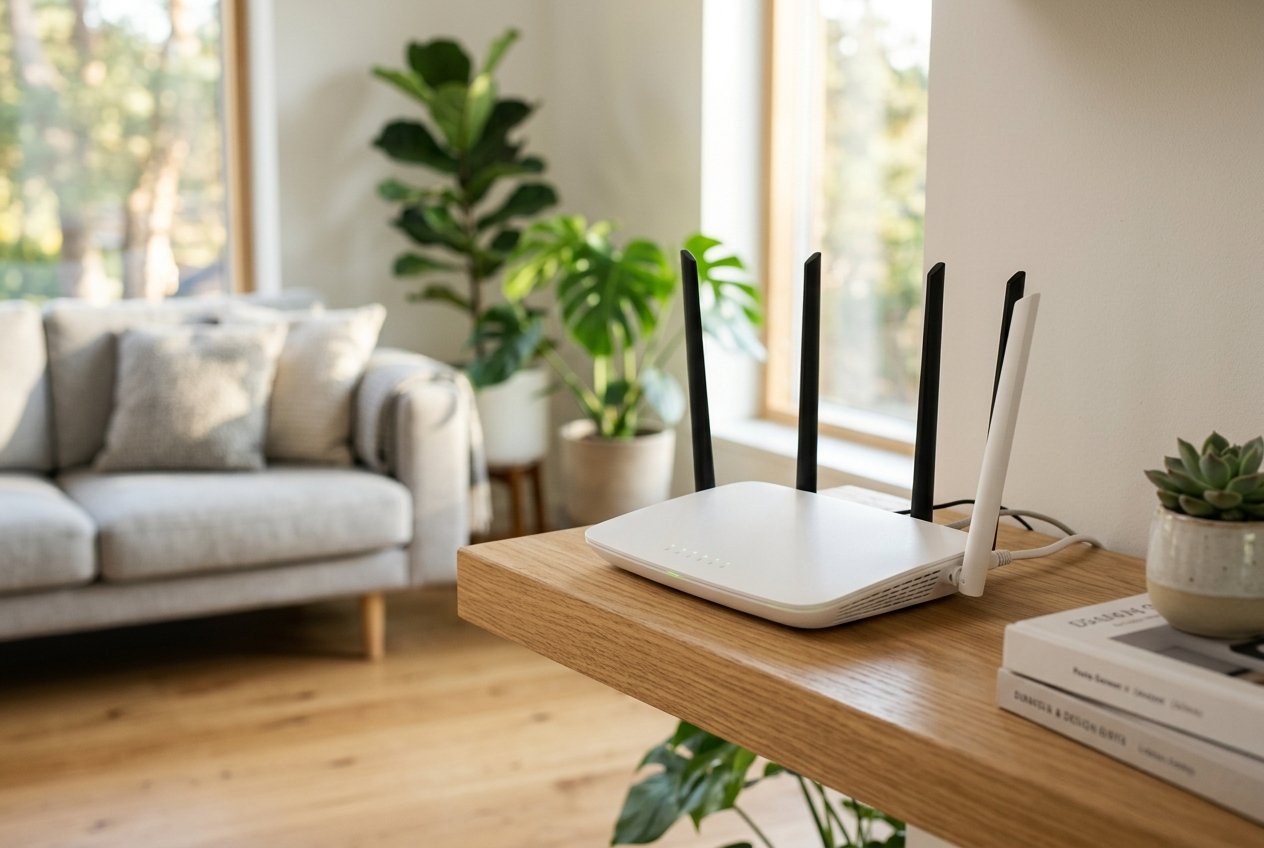
Central, elevated, and away from obstructions. Common mistakes:
- On the floor or inside a cupboard
- Beside a microwave oven — they operate at 2.4 GHz and actively interfere
- Pressed against a metal cabinet or behind a large TV
- In the corner of the house, so half the home is at the edge of range
A router on a shelf in the middle of the home beats an expensive router in a cupboard every time.
Settings that make a real difference
4. Use the right band for each device
2.4 GHz travels further and penetrates walls better but is slower and far more crowded. 5 GHz is much faster with shorter range. If your phone is sitting two metres from the router on 2.4 GHz because it prefers range, you are leaving speed behind. Many routers offer separate network names for each band — split them and connect nearby devices to 5 GHz explicitly.
5. Change the Wi-Fi channel
In dense housing, neighbouring networks on the same channel collide with yours. On 2.4 GHz only channels 1, 6 and 11 do not overlap — pick the least busy of those three. 5 GHz offers many more options. Use a Wi-Fi analyser app to see what neighbours are using, then set your router to the emptiest. This is usually a five-minute change in the router admin panel.
6. Update the router firmware
Manufacturers release updates that fix bugs, patch security holes and improve radio performance. Check the admin panel for a firmware update — if the router has not been updated in years, this alone often produces a noticeable change. It also closes vulnerabilities; our website safety checks guide covers the wider habit of keeping things patched.
7. Change your DNS server
Domain Name System lookups happen constantly, and your ISP’s resolver is sometimes slow or overloaded. Switching to a public resolver typically shortens the delay before a page starts loading — which feels like speed even when raw throughput is unchanged. Enter the addresses in the router so every device benefits.
8. Enable Quality of Service (QoS)
QoS lets you prioritise video calls or work traffic over background downloads. If someone’s game download is making your calls stutter, QoS is the correct fix rather than buying new hardware. Look for “QoS”, “Bandwidth Control” or “Traffic Prioritisation”.
9. Reduce channel width interference
Setting 2.4 GHz to a 40 MHz channel width sounds like an upgrade, but in crowded areas a wide channel overlaps more neighbours and performs worse. In dense buildings, 20 MHz on 2.4 GHz is often the faster choice in practice.
When the hardware is the limit
10. Add a mesh node or access point
A single router cannot cover a large or thick-walled home. If some rooms drop to one bar, that is a coverage problem, not a speed problem. Mesh systems place nodes around the home and hand devices between them; powerline adapters use your electrical wiring to reach dead zones. An extender that repeats the signal halves throughput, so wired backhaul or mesh is preferable where possible.
11. Replace an ageing router
Routers more than about seven or eight years old usually predate widespread Wi-Fi 6 and often cannot handle many simultaneous connections. Signs: frequent restarts, devices that disconnect randomly, or a speed test that improves dramatically when only one device is connected. A modern router is the fix when every setting above has already been tried.
The order to try them in
- Speed test over Ethernet to confirm the line is fine
- Restart modem and router (30 seconds, in sequence)
- Check for bandwidth-heavy or unknown devices
- Reposition the router
- Split bands and connect nearby devices to 5 GHz
- Change to a clear channel
- Update firmware
- Change DNS, then set up QoS
- Add mesh or access points for coverage
- Replace the router if it is genuinely old
If you are on mobile data rather than Wi-Fi, the same coverage logic applies but the fixes are different — our what is 5G explainer covers why speeds vary so much on cellular.
When to contact your ISP
Contact them when the wired test is also slow, when speeds drop at consistent times every evening, when the line disconnects repeatedly, or when you see errors on the modem log. Ask them to check line quality rather than accepting a suggestion to restart your router, which you have already done.
Ask specifically for the sync speed — the speed your line is actually negotiating. That number separates a congested network from a poor physical line, and it is the figure an engineer will care about.
Frequently asked questions about slow Wi-Fi
How far should I be from the router?
Within one room and in line of sight, most routers deliver close to their best. Two walls or one floor later, particularly at 5 GHz, throughput falls sharply. If you work in a specific room, it is worth testing the speed there rather than judging from where the router sits.
Does a Wi-Fi booster really help?
Only in specific situations. A repeater positioned halfway between router and dead zone can extend coverage, but it retransmits everything and roughly halves available speed. It helps when the alternative is no usable signal at all. Mesh with wired backhaul, or a powerline adapter, gives better results.
Should I leave my router on all the time?
Yes. Routers are designed for continuous operation, and regularly power-cycling them causes brief outages for everyone and interrupts firmware maintenance tasks. Restart when there is a problem, not on a schedule.
Is public Wi-Fi safe for banking?
Not without precautions. Untrusted networks can be monitored or spoofed. A VPN encrypts the connection between you and the VPN server, which is the standard recommendation for any network you do not control — though it does not protect you from logging into a fake version of a site you were tricked into visiting.
This article explains general technology concepts and is not professional advice.







[…] Slow Wi-Fi? 11 Fixes to Speed Up Your Home Internet […]
[…] is fine and the home network is the problem. For slower-but-working connections, see our guides to slow Wi-Fi fixes and checking your internet […]