










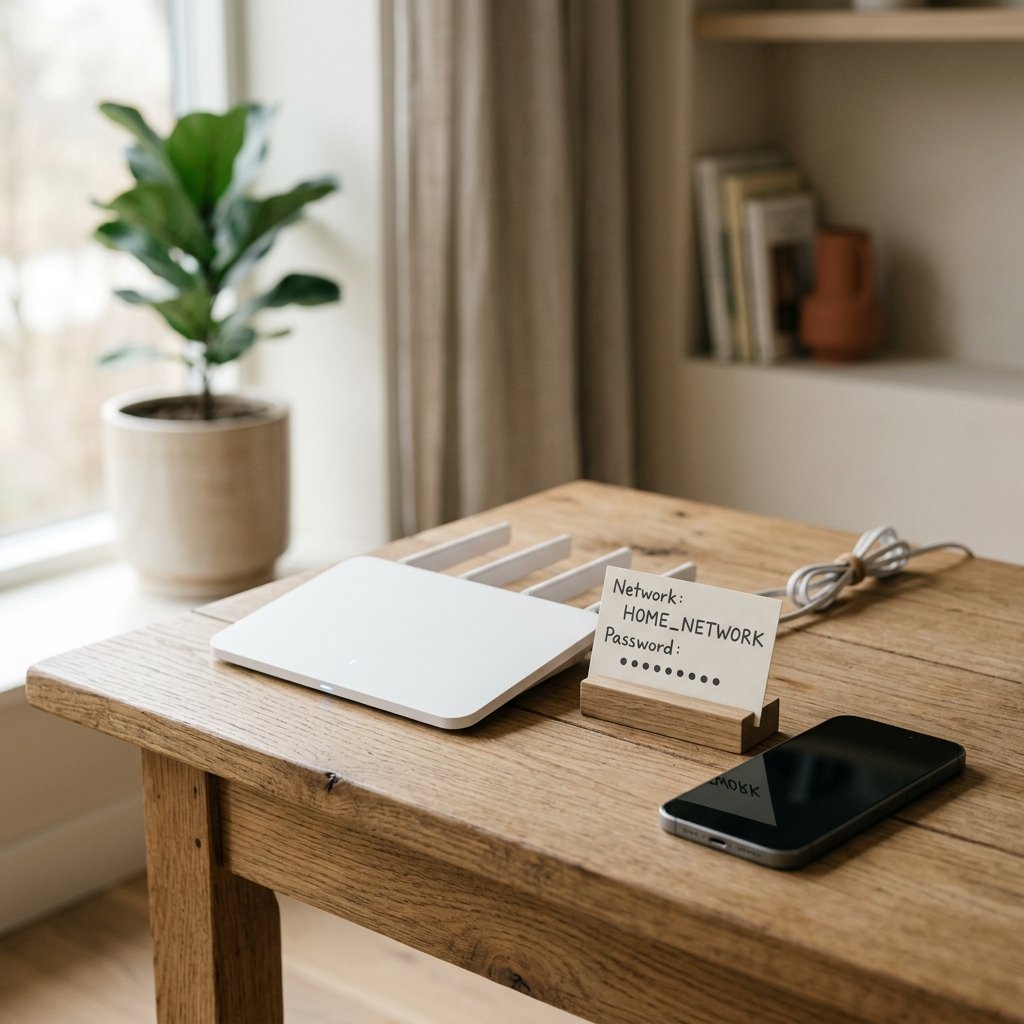
Most people forget their Wi-Fi password the moment they set it. The good news is that you rarely need to reset the router. The password is stored on every device that has connected before, and you can read it back in a few clicks. This guide shows how to find, share and change your Wi-Fi password on Windows, Mac, Android and iPhone.
Find your Wi-Fi password on Windows
- Open Settings, then Network and Internet, then Wi-Fi, then Manage known networks.
- Click your network, then click Properties.
- Under “Wi-Fi network password”, click Show.
- Windows may ask you to enter your account password or PIN first.
On older Windows versions, open Control Panel, then Network and Sharing Center, click your Wi-Fi network, then Wireless Properties, then the Security tab, and tick “Show characters”.
Find your Wi-Fi password on a Mac
- Open Keychain Access (search for it in Spotlight).
- Search for your network name.
- Double-click the entry, then tick “Show password”.
- Enter your Mac user password to reveal it.
Find your Wi-Fi password on Android
On most Android phones, go to Settings, then Network and Internet, then Wi-Fi, and tap the settings icon next to your connected network. Tap “Share” and scan the QR code with another phone, or read the password shown under the QR code. On some phones you need to enter your PIN or fingerprint first.
Find your Wi-Fi password on an iPhone
On iOS 16 and later, go to Settings, then Wi-Fi, tap the info icon next to your network, and tap the password field. Use Face ID or Touch ID to reveal it. You can also share the password by bringing two Apple devices close together.
Share your Wi-Fi password with a QR code
Instead of reading out a long password, generate a QR code. Many routers print one on the label. You can also create one in your phone’s Wi-Fi settings (the Share button on Android), or use a free QR code generator with the format WIFI:T:WPA;S:NetworkName;P:Password;;. Anyone who scans it joins the network without typing.
Change your Wi-Fi password
- Find your router’s IP address. It is usually printed on the router, or you can find it in your device’s Wi-Fi details (often 192.168.1.1 or 192.168.0.1).
- Type that address into a browser while connected to the network.
- Log in with the admin username and password on the router label.
- Go to Wireless or Wi-Fi settings, change the password, and save.
After changing it, all devices will disconnect. Reconnect each device with the new password. Use a long password with letters, numbers and symbols, and avoid your name, phone number or date of birth.
Tips for a stronger Wi-Fi password
- Use at least 12 characters.
- Mix upper and lower case, numbers and symbols.
- Do not reuse a password you use elsewhere.
- Change it if you gave it to a guest, a former tenant or a staff member who has left.
Frequently asked questions
What if I forgot both the Wi-Fi password and the router admin password?
Press and hold the reset button on the router for about 10 seconds to restore factory settings. Then set up the network again using the details on the router label.
Can I find the Wi-Fi password without admin access?
Yes, if your device has connected before. Use the methods for Windows, Mac, Android or iPhone above. You only need admin access to change the password.
Is it safe to share my Wi-Fi password?
Share it only with people you trust. For guests, use a guest network with a separate password, which most modern routers support.






[…] How to Find, Share and Change Your Wi-Fi Password on Any Device […]